
The WP Admin link was moved to the three-dot menu in the top right corner to streamline the navigation bar. If you prefer having it in the main navigation sidebar, you can add it back using PHP and CSS snippets.Documentation Index
Fetch the complete documentation index at: https://mainwp-mintlify-c0f00f42.mintlify.app/llms.txt
Use this file to discover all available pages before exploring further.
What You’ll Learn
- How to add a WP Admin link to the sidebar
- How to position it at the bottom of the navigation
Prerequisites
- Custom Dashboard extension (free)
Add the WP Admin Button
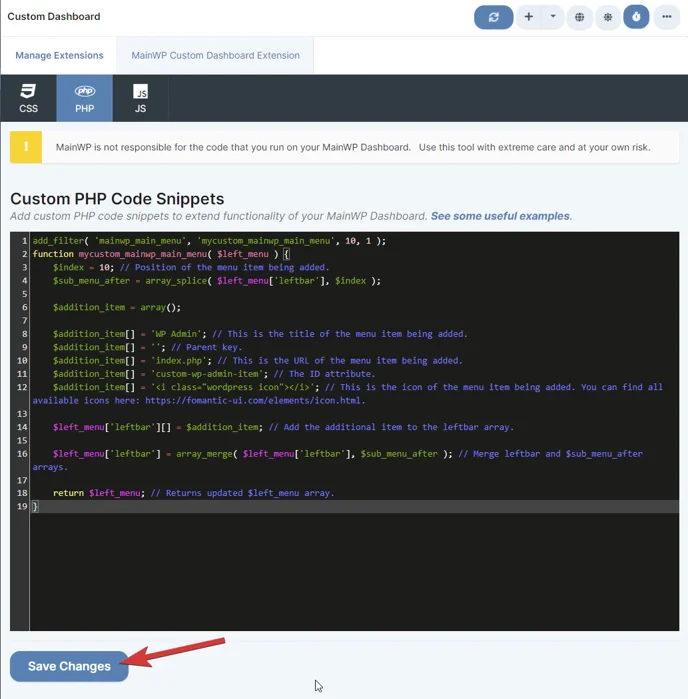
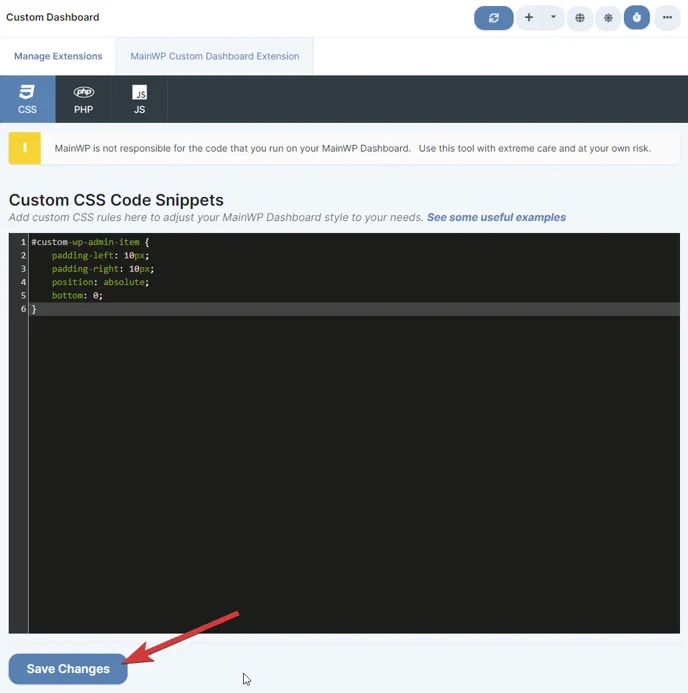
This requires both a PHP snippet (to create the menu item) and a CSS snippet (to position it at the bottom).Step 1: Add PHP Code
Step 2: Add CSS Code
Customization Options
| Option | Change |
|---|---|
| Position in menu | Modify $index value (lower = higher in menu) |
| Button text | Change 'WP Admin' to your preferred label |
| Link destination | Change 'index.php' to another admin page |
| Visual position | Modify CSS bottom value or remove position: absolute |
Self-Check Checklist
- Custom Dashboard extension installed
- PHP code added to PHP tab
- CSS code added to CSS tab
- Both snippets saved
- WP Admin button visible in navigation sidebar
Related Resources
- Add Menu Entries - Add other custom menu items
- Custom Dashboard Extension - Full extension documentation