
This article covers the most common icons you may encounter on the MainWP Dashboard.Documentation Index
Fetch the complete documentation index at: https://mainwp-mintlify-c0f00f42.mintlify.app/llms.txt
Use this file to discover all available pages before exploring further.
Sync and Check Now bulk actions
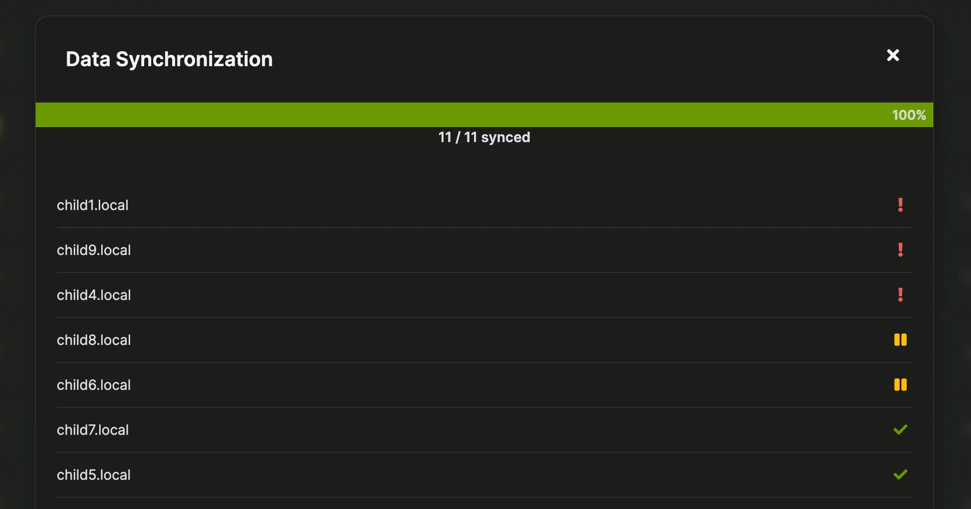
- Red exclamation mark indicates that the process failed. For example, it could be due to the fact that the MainWP Child plugin was not reachable on the Child Site.
- Yellow exclamation mark indicates that the process timed out. The tooltip shows Process timed out. Please try again.
- Yellow pause icon indicates that the site is suspended. Learn more in Suspend or Unsuspend a Child Site.
- Green check mark indicates that the process was completed successfully.
Header Sync button
The top header Sync button can show a small red pulsating badge. This badge appears when the most recent sync timestamp exists and is older than 24 hours.- In global context, MainWP checks overall MainWP Dashboard sync status.
- In single-site context, MainWP checks the current site sync timestamp.
- If sync data is recent, the tooltip shows Last sync: … with sync guidance.
- If no sync timestamp exists yet, the tooltip shows sync guidance such as Click here to sync all sites.
- In single-site context with no sync timestamp yet, the tooltip can show Get fresh data from example.com.
Available updates on the Dashboard site
 You may occasionally see the red Update Dashboard Site label in the bottom-left area of your MainWP Dashboard navigation. This label appears when the WordPress installation where the MainWP Dashboard plugin is installed reports an available plugin, theme, WordPress core, or translation update. That includes updates to the MainWP Dashboard plugin itself. Click that label when it appears and perform all available updates on your Dashboard site.
MainWP shows this label from the Dashboard site’s own WordPress update data. WordPress builds that update count from update transients for plugins, themes, WordPress core, and translations. The label is not based on available updates for connected MainWP Child sites.
If the Dashboard site appears fully updated but the label still appears, WordPress may still be returning stale update data from the database or from a persistent object cache. Open the Dashboard site’s WordPress Updates screen, click Check again., and clear any server-side or object cache used by the Dashboard site. If the label remains after a fresh update check and cache purge, review the Dashboard site’s update transients or any plugins that filter WordPress update data.
You may occasionally see the red Update Dashboard Site label in the bottom-left area of your MainWP Dashboard navigation. This label appears when the WordPress installation where the MainWP Dashboard plugin is installed reports an available plugin, theme, WordPress core, or translation update. That includes updates to the MainWP Dashboard plugin itself. Click that label when it appears and perform all available updates on your Dashboard site.
MainWP shows this label from the Dashboard site’s own WordPress update data. WordPress builds that update count from update transients for plugins, themes, WordPress core, and translations. The label is not based on available updates for connected MainWP Child sites.
If the Dashboard site appears fully updated but the label still appears, WordPress may still be returning stale update data from the database or from a persistent object cache. Open the Dashboard site’s WordPress Updates screen, click Check again., and clear any server-side or object cache used by the Dashboard site. If the label remains after a fresh update check and cache purge, review the Dashboard site’s update transients or any plugins that filter WordPress update data.
Manage Sites table
 Different icons will be displayed next to child sites to indicate their status.
- Red icon indicates that the site is disconnected, and you may click the icon to try to reconnect it.
- Yellow pause icon indicates that the site is suspended. Learn more in Suspend or Unsuspend a Child Site.
- Green icon indicates that the site is properly connected. Clicking the icon will initialize a Synchronization with that site.
Monitoring Page table
 On the Monitoring page, multiple table indicators are used:
- In the Status column, a green up icon means the monitor is currently online.
- In the Status column, a red down icon means the monitor is currently offline.
- In the Status column, a gray circle icon means status is pending (not enough check data yet).
- In the Status column, a gray stop icon means the monitor is disabled.
- The Site Health column shows Good (green) or Should be improved (orange) when Site Health monitoring is enabled.
- Last 24h Status shows hourly green/red/gray indicators and a summary such as Up percentage or Pending.