
The user icon in the top right corner of your MainWP Dashboard comes from your WordPress user profile and Gravatar settings. MainWP follows standard WordPress avatar behavior.Documentation Index
Fetch the complete documentation index at: https://mainwp-mintlify-c0f00f42.mintlify.app/llms.txt
Use this file to discover all available pages before exploring further.
What You’ll Learn
- How MainWP selects your profile picture
- How to change your avatar
- WordPress avatar settings
How the Avatar is Selected
MainWP checks these settings in order:1. Show Avatars Disabled
If Show Avatars is disabled on your Dashboard site, a generic user icon appears. Location: WP Admin > Settings > Discussion
2. Gravatar Linked
If Show Avatars is enabled and your email address is linked to a Gravatar account, your Gravatar image displays. Location: WP Admin > Users > Profile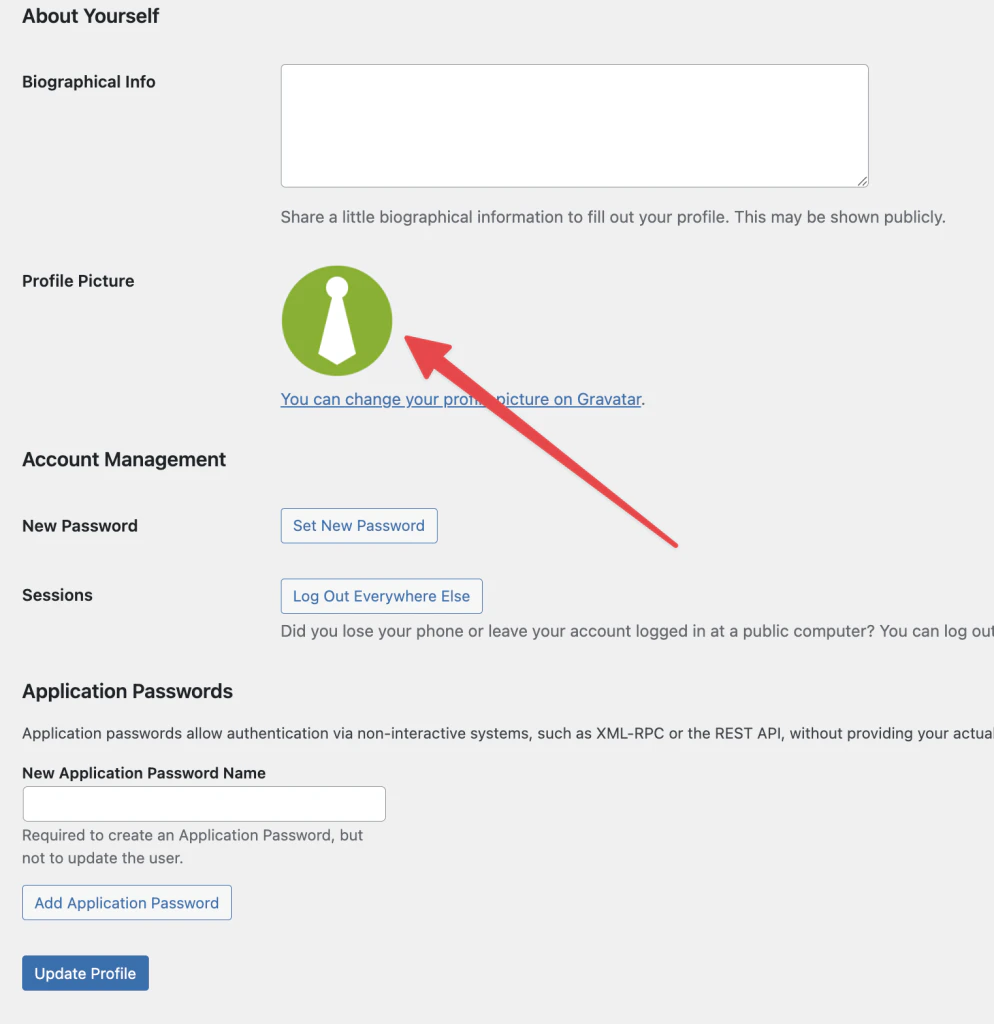
3. Default Avatar
If you don’t have a Gravatar, WordPress displays the default avatar selected in Discussion settings. Location: WP Admin > Settings > Discussion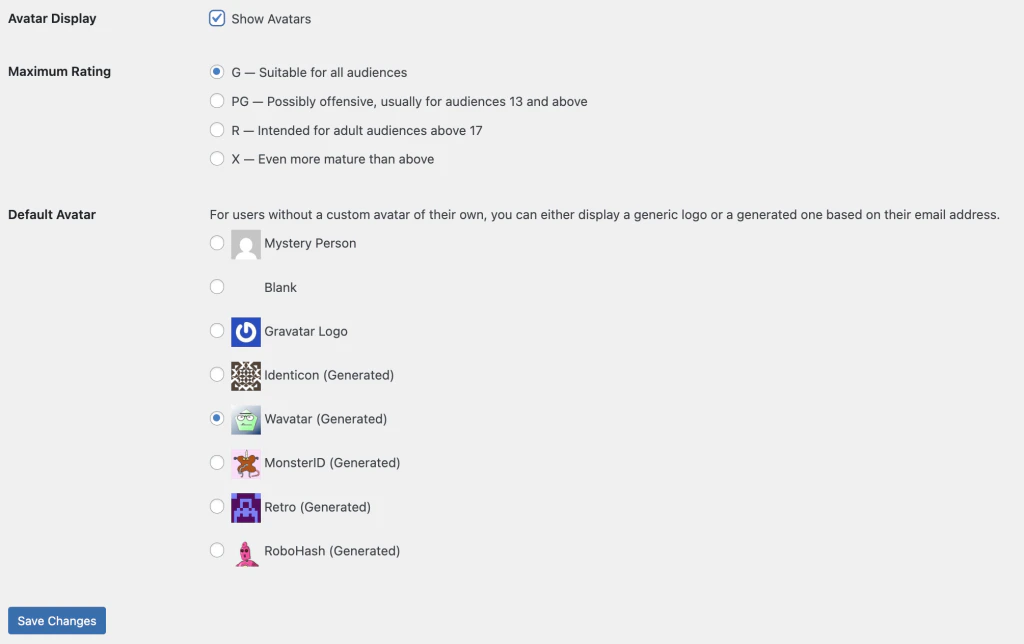
Change Your Profile Picture
| Method | Steps |
|---|---|
| Use Gravatar | Create an account at gravatar.com with the same email as your WordPress user |
| Change default | Go to WP Admin > Settings > Discussion and select a different default avatar |
| Plugin | Install a user avatar plugin to upload custom profile pictures |
Self-Check Checklist
- Check if Show Avatars is enabled (WP Admin > Settings > Discussion)
- Verify email address in your user profile
- Gravatar account linked to your email (optional)
- Avatar displays correctly in Dashboard toolbar
Related Resources
- Customize Dashboard Logo - Change the MainWP logo
- White Label Extension - Complete Dashboard branding