
MainWP performs Site Hardening checks on your child sites to identify potential issues. You can disable specific checks that are not relevant to your setup using a code snippet.Documentation Index
Fetch the complete documentation index at: https://mainwp-mintlify-c0f00f42.mintlify.app/llms.txt
Use this file to discover all available pages before exploring further.
What You’ll Learn
- How to disable individual Site Hardening checks
- How to disable multiple checks at once
- Available check identifiers
Prerequisites
- Custom Dashboard extension (free)
Why Remove Site Hardening Checks
Some security checks may not apply to your environment. For example:- You intentionally keep debug mode enabled on development sites
- Your server configuration requires specific PHP settings
- Certain inactive themes are kept for testing purposes
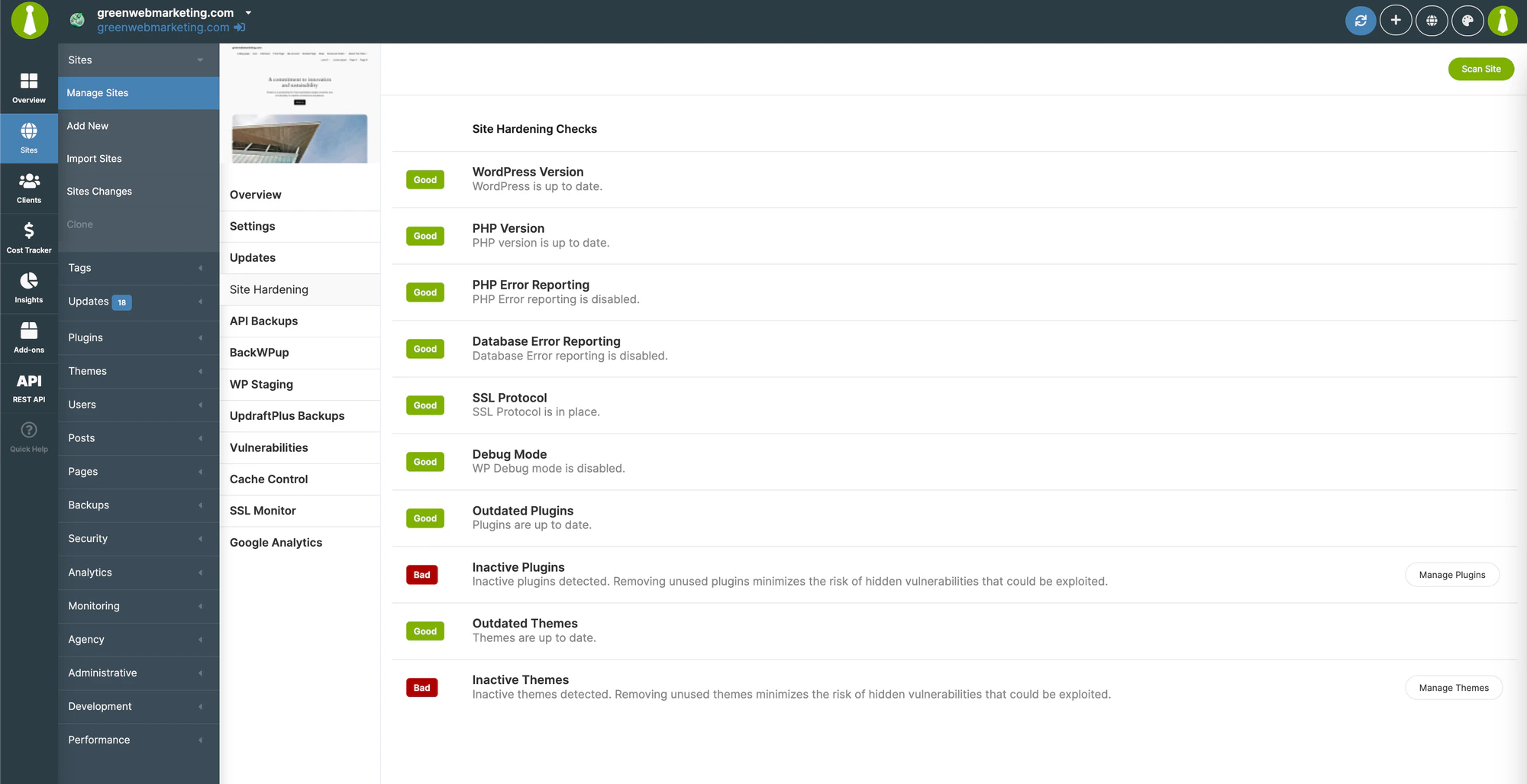
Disable a Single Check
Customize the identifier
Replace
'sec_inactive_themes' with the identifier for the Site Hardening check you want to disable.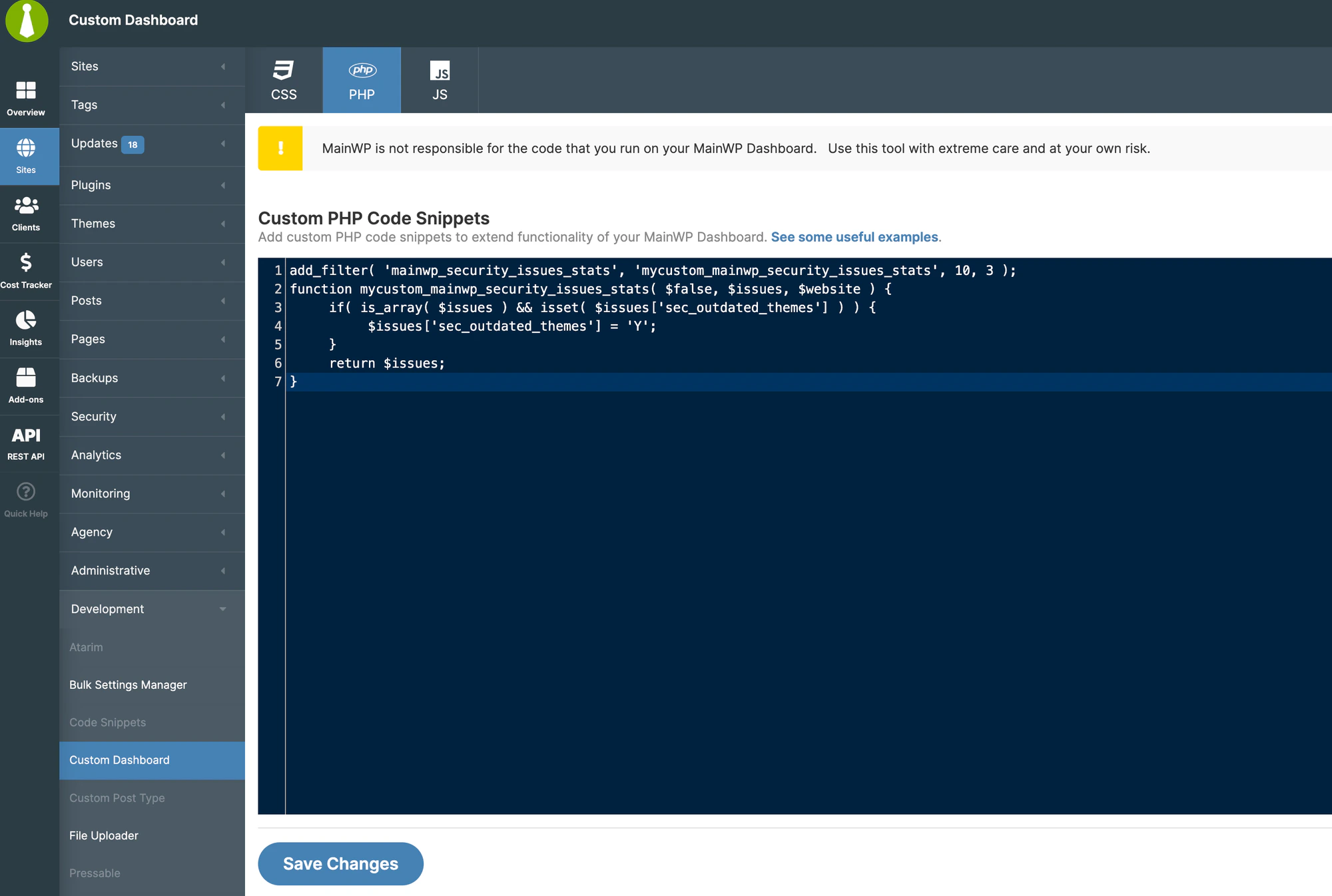
Available Check Identifiers
| Check | Identifier |
|---|---|
| WordPress Version | 'wp_uptodate' |
| PHP Version | 'phpversion_matched' |
| PHP Error Reporting | 'php_reporting' |
| Database Error Reporting | 'db_reporting' |
| SSL Protocol | 'sslprotocol' |
| Debug Mode | 'debug_disabled' |
| Outdated Plugins | 'sec_outdated_plugins' |
| Inactive Plugins | 'sec_inactive_plugins' |
| Outdated Themes | 'sec_outdated_themes' |
| Inactive Themes | 'sec_inactive_themes' |
Disable Multiple Checks
To disable several checks at once, use this code and uncomment the checks you want to disable:// are commented out and the check remains active. Remove the // to disable that check.
Restore Checks
To re-enable a check:- Return to the Custom Dashboard extension
- Remove the corresponding line from the PHP code (or comment it out with
//) - Click Save Changes
Self-Check Checklist
- Custom Dashboard extension installed
- PHP code added to PHP tab
- Correct identifiers used for checks to disable
- Changes saved
- Site Hardening scan no longer shows disabled checks
Related Resources
- Custom Dashboard Extension - Extension documentation
- Vulnerability Checker Extension - Security scanning
- How Secure is MainWP - Security overview