
When a security layer blocks MainWP’s connection request, the Dashboard displays a generic “MainWP Child plugin not detected” error because the request never reaches the child site. MainWP captures the actual server response, which often reveals what blocked the connection and how to fix it.Documentation Index
Fetch the complete documentation index at: https://mainwp-mintlify-c0f00f42.mintlify.app/llms.txt
Use this file to discover all available pages before exploring further.
What You’ll Learn
- Access the raw server response from failed connections
- Render the response as readable HTML
- Identify which security layer blocked the request
- Find the information needed to whitelist your Dashboard
Prerequisites
- MainWP Dashboard installed and activated
- A child site that fails to connect
- Access to an HTML rendering tool (like CodePen)
View the Server Response
Trigger the connection error
Attempt to connect a child site. When the connection fails, MainWP displays an error message with a link to view the server response.
Open the response modal
Click the link in the error message to open a modal window showing the raw server response.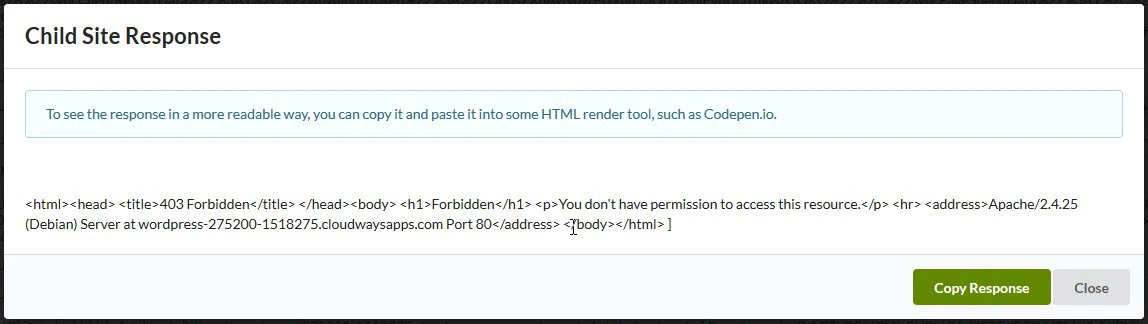
Render the HTML
Paste the response into an HTML rendering tool like CodePen to view it as formatted HTML.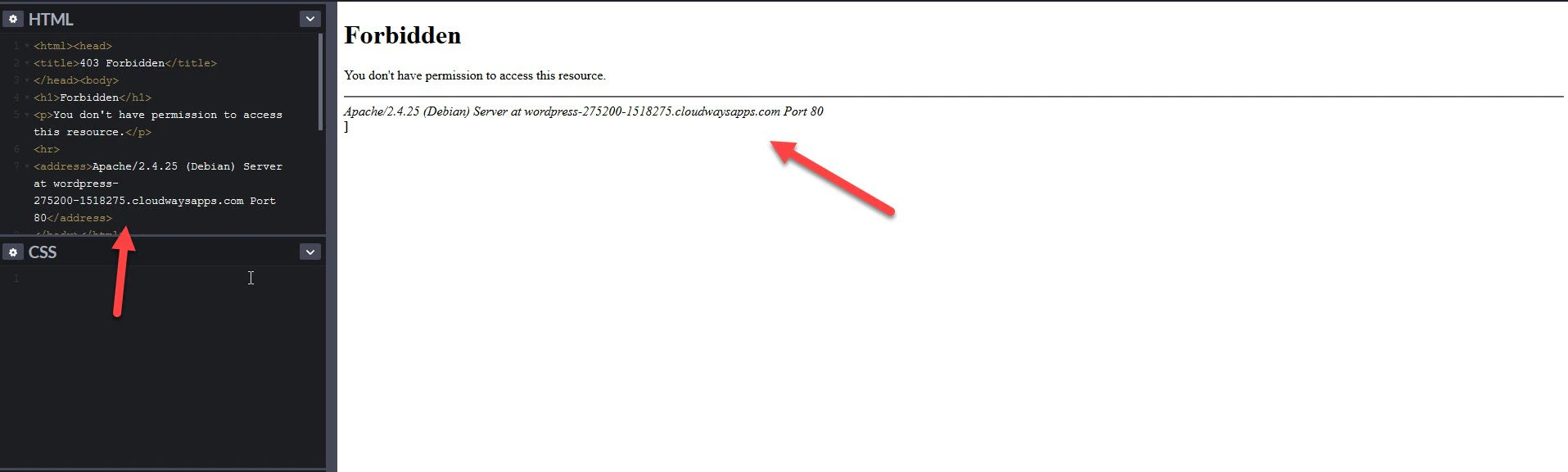
Common Information in Responses
| Information | What It Tells You |
|---|---|
| Security rule ID | The specific rule that triggered the block |
| Blocked IP | Your Dashboard’s IP address to whitelist |
| Error code | The type of security violation detected |
| Service name | Which firewall or security layer is blocking |
Next Steps
Once you identify the blocking security layer:- ModSecurity - Add an exclusion rule for your Dashboard IP. See ModSecurity troubleshooting.
- Imunify360 - Whitelist your Dashboard IP in WHM. See Imunify360 troubleshooting.
- Cloudflare - Create a firewall rule to allow your Dashboard IP. See Cloudflare troubleshooting.
- Other firewalls - Contact your hosting provider with the response details.
Self-Check Checklist
- Viewed the raw server response from the connection error
- Rendered the response as HTML to make it readable
- Identified the security layer blocking the connection
- Noted the Dashboard IP address or rule ID to whitelist
- Applied the appropriate fix for the security layer
Related Resources
- Troubleshoot Connection Problems - Comprehensive connection troubleshooting
- Connection Test Status Codes - Interpret HTTP error codes
- Enable Error Logging - Debug with WordPress logs