
MainWP Dashboard pages can be customized with different widget arrangements and table column configurations. If you want to restore a page to its default layout, you can reset the settings.Documentation Index
Fetch the complete documentation index at: https://mainwp-mintlify-c0f00f42.mintlify.app/llms.txt
Use this file to discover all available pages before exploring further.
What You’ll Learn
- How to reset widget layouts on overview pages
- How to reset table layouts on list pages
When to Reset Page Settings
Use this feature when:- Widgets are arranged in an unhelpful way
- Important widgets are hidden
- Table columns are in a confusing order
- You want to start fresh with default settings
Reset Widget Layout
Widget-based pages include the Overview Page, Child Site Overview Page, and Client Card page.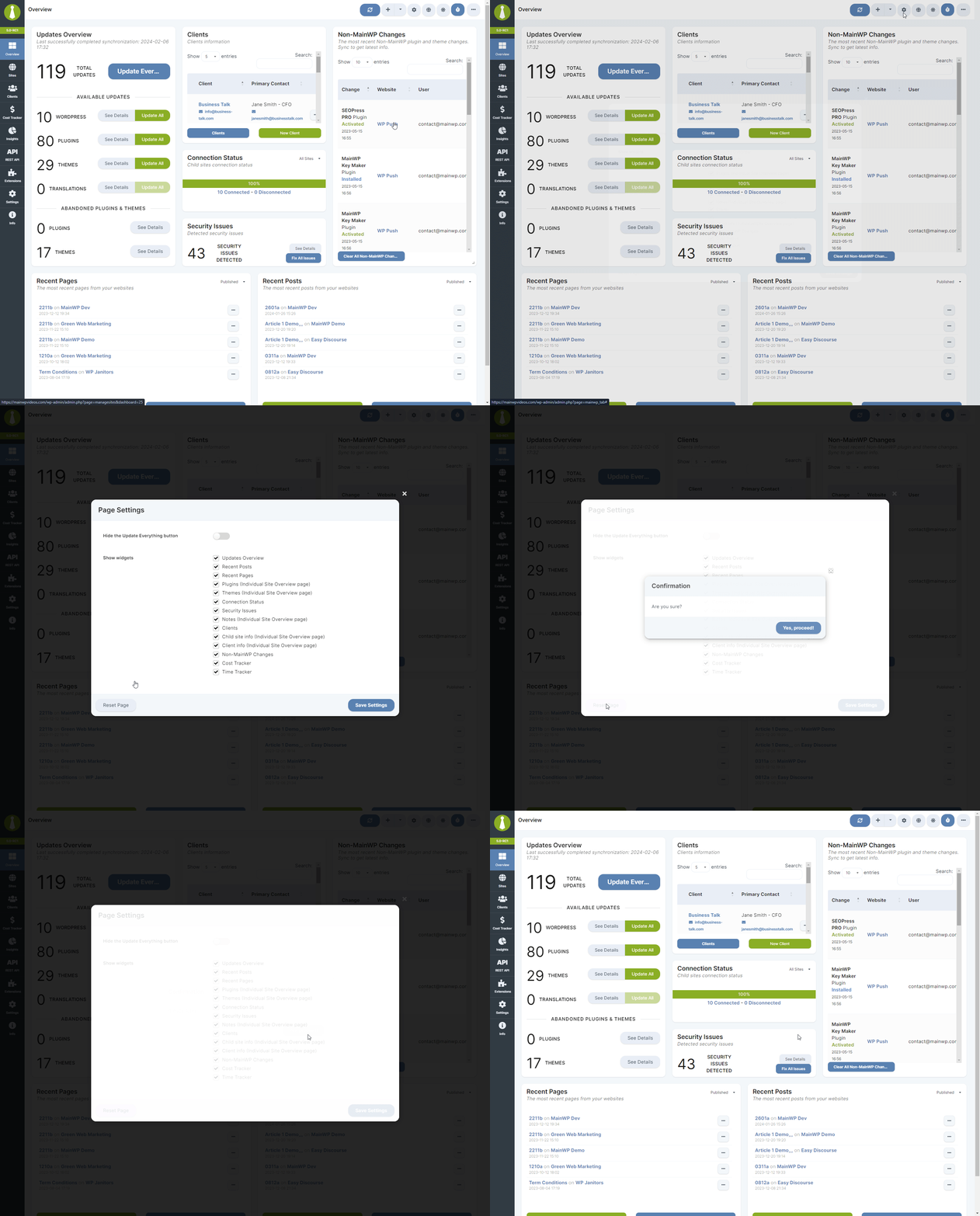
- Widget positions
- Widget sizes
- Widget visibility (shown/hidden)
Reset Table Layout
Table-based pages include Manage Sites, Manage Plugins, Manage Themes, and similar list views.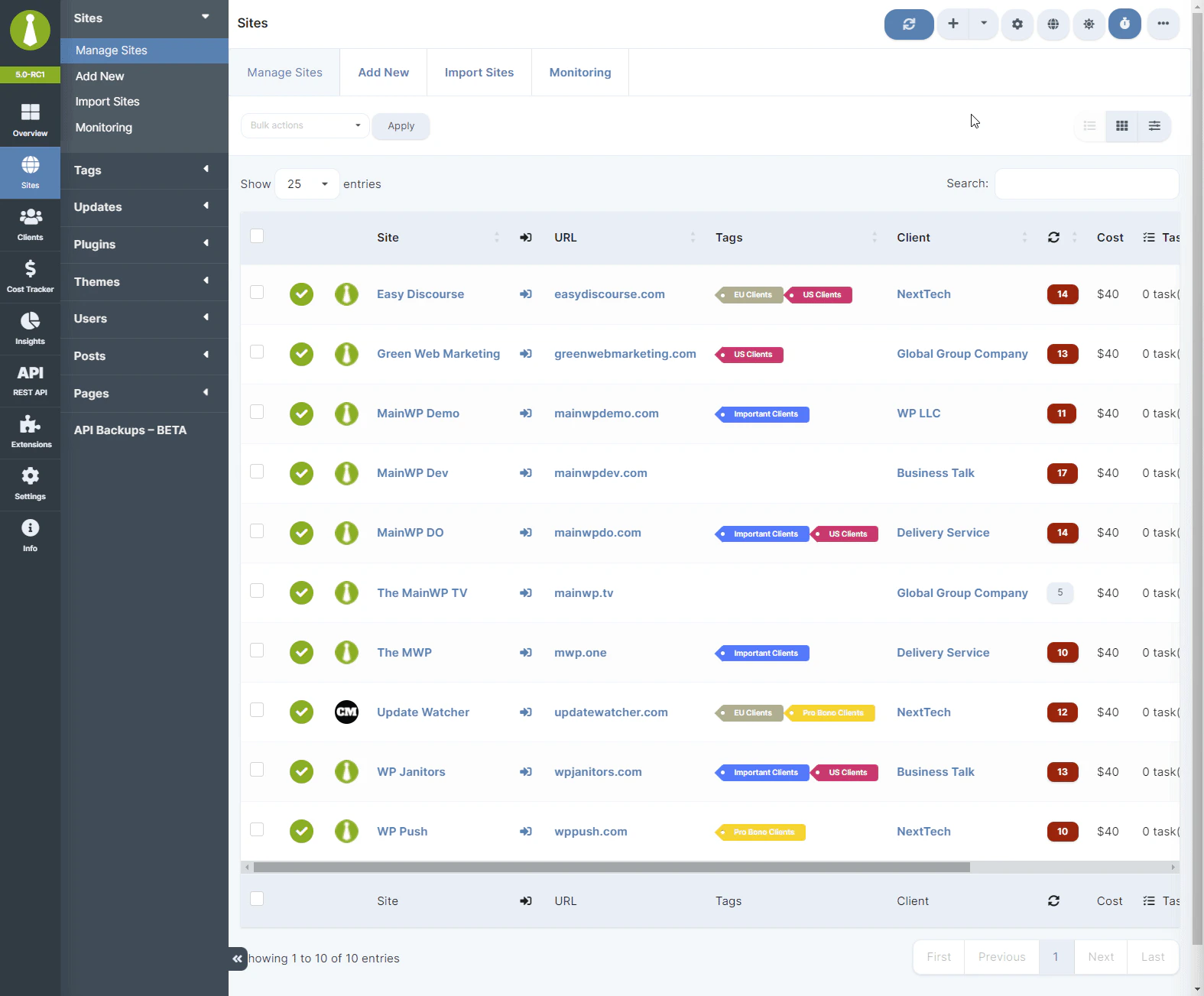
- Column visibility
- Column order
- Any sorting preferences
Self-Check Checklist
- Identified page needing reset
- Clicked Cog icon
- Clicked Reset Page
- Confirmed the reset
- Page showing default layout
Related Resources
- Hide Widgets - Widget visibility options
- Widget Columns - Column layout settings