
Documentation Index
Fetch the complete documentation index at: https://mainwp-mintlify-c0f00f42.mintlify.app/llms.txt
Use this file to discover all available pages before exploring further.
What You’ll Learn
- Creating and uploading custom PHP template files
- Using Client, Section, Data, and Counter tokens
- Customizing report output with HTML and CSS
- Loading custom fonts in generated PDF reports
- Adjusting PDF-specific layout issues
Extension Add-on - This add-on provides standalone functionality within MainWP Dashboard. No third-party plugins required.
Introduction
The Pro Reports Extension uses PHP templates that allow you to design and create professional reports with the information you want to show to your clients. The extension also allows you to add custom content, including contact info, images, additional text, or any other content you want to include in your report. Creating a custom report consists of two steps. The first step is to create the actual PHP file representing the template, and the second is to edit and customize that PHP file. Customizing the template by adding or removing Pro Reports Tokens should be easy and straightforward for most readers. Advanced customization of the report requires some knowledge of HTML.Creating a PHP file for the Custom report
We will be using one of the built-in templates as a starting point for the custom report. We will do so by downloading MainWP Pro Reports Extension in ZIP file format and copying one of the PHP template files.Download the MainWP Pro Reports Extension from your MainWP Account
Download the MainWP Pro Reports Extension from your MainWP Account
Locate one of the default PHP templates in the /mainwp-pro-reports-extension/templates/reports/ directory
Locate one of the default PHP templates in the /mainwp-pro-reports-extension/templates/reports/ directory
Copy a PHP file, rename the file to a new desired title, and use your favorite code editor to make customizations (see the following chapter for instructions on customization)
Copy a PHP file, rename the file to a new desired title, and use your favorite code editor to make customizations (see the following chapter for instructions on customization)
Once you are finished with the customization and the template is ready, upload the PHP file to the /wp-content/uploads/mainwp/report-templates/ directory on your Dashboard site
Once you are finished with the customization and the template is ready, upload the PHP file to the /wp-content/uploads/mainwp/report-templates/ directory on your Dashboard site
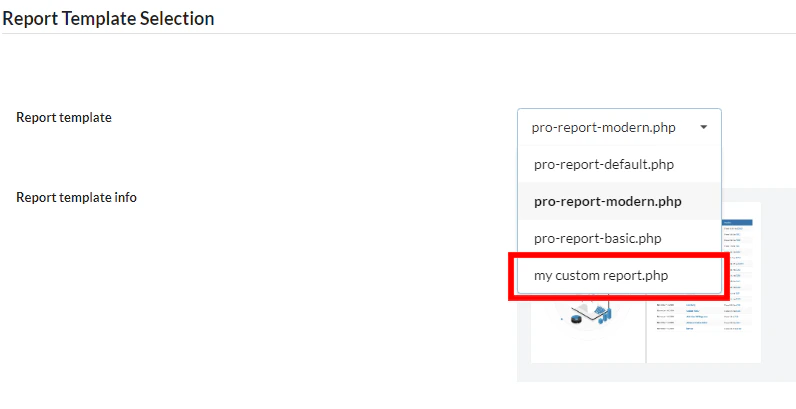
How to Use Tokens
Tokens offer an easy way to customize your Pro Report. They can be added directly to the PHP file of your custom report or in the existing Reports through the visual editor on MainWP Dashboard. The MainWP Pro Reports Extension uses three main token types:- Client Tokens
- Section Tokens
- Data Tokens
Client Tokens
These tokens will allow you to display data you have set on the Child Site edit screen. If you plan to use one of the Client tokens in a report for a certain Child site, a value for it must be set.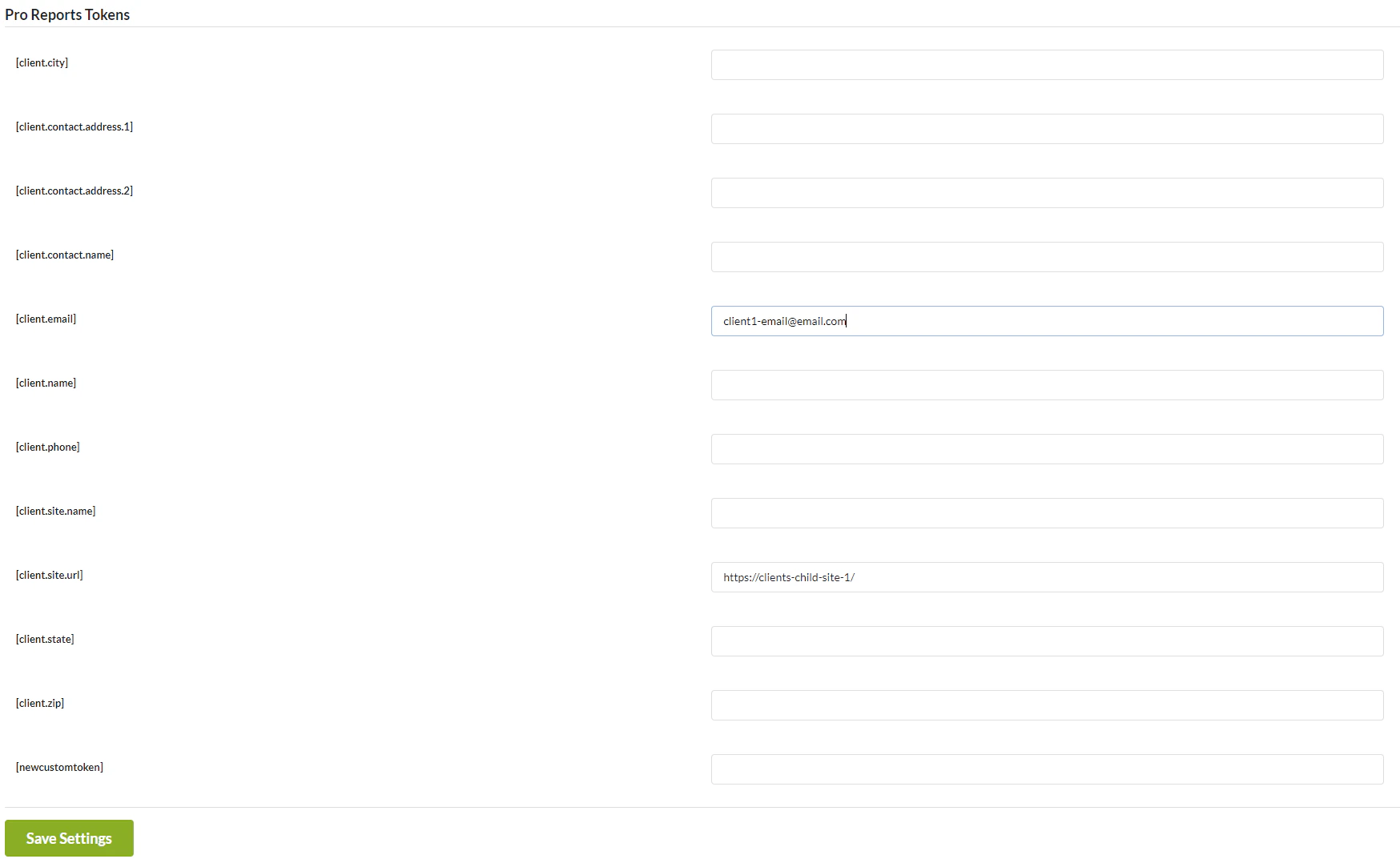 For example, by setting the value for [client.email], that token can be used in the Send email to field in order to send a report for multiple websites and multiple clients.
 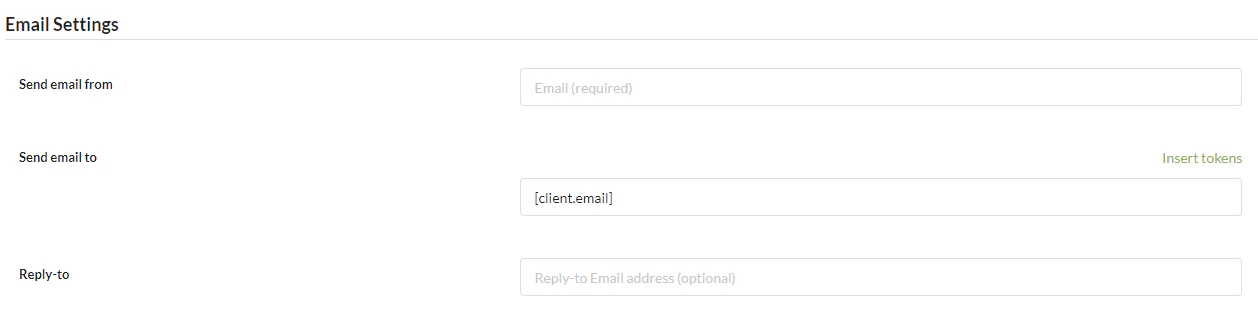 You can easily see available Client Tokens and insert them into a field by clicking on the Insert tokens link.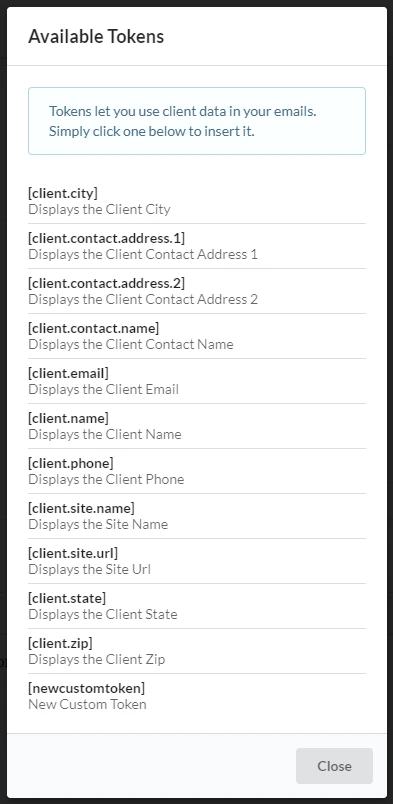
Section Tokens
Section tokens require both opening and closing tags. They can easily be recognized by the starting part section. For example, [section.plugins.installed] is an Opening tag and [/section.plugins.installed] is a Closing tag for that Section token. Section token loops through the database and searches for the relevant data during the selected date range. Example: [section.plugins.installed] The following code would loop through all selected Child sites and, within the selected Date range, list all instances of plugin installations. [section.plugins.installed] [plugin.name] [plugin.installed.date] [/section.plugins.installed]
Data Tokens
Data tokens have only one tag; they have to be used inside section tokens and have to be added between an opening and closing tag of a section token. From the example above for the Section Tokens, the [plugin.name] and [plugin.installed.date] are Data Tokens. [section.plugins.installed] [plugin.name] [plugin.installed.date] [/section.plugins.installed] In our help article you can find all available Data Tokens and the respective Section tokens into which they can be inserted.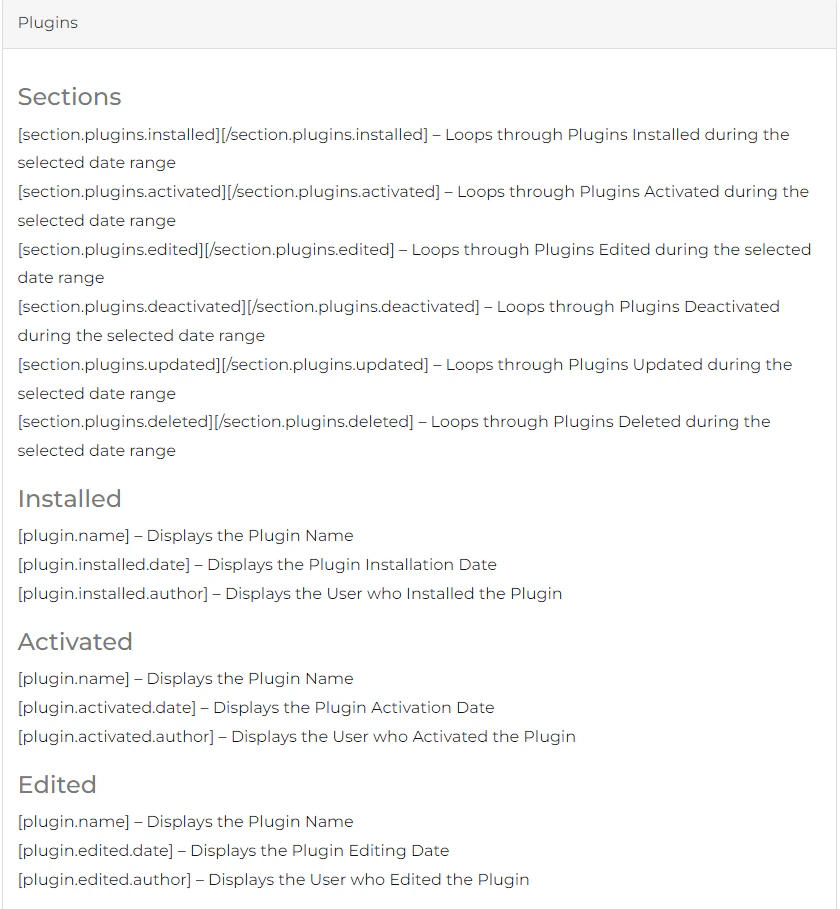
Counter Tokens
Counter Tokens are a special type of Data tokens. You will be able to recognize these tokens by the first word. They end with “.count.” For example [plugin.installed.count] These tokens won’t work inside of the section tokens. You need to use them outside of section tokens. Example: [plugin.installed.count] The counter token will display the number of Installed Plugins, but it must be placed outside of the opening and closing tag of the section token. [section.plugins.installed] [plugin.name] [plugin.installed.date] [/section.plugins.installed] Total number of plugin installations: [plugin.installed.count]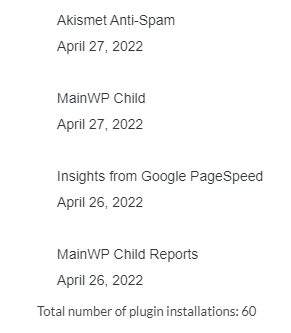
Custom Fonts and PDF Styling
The report preview uses your browser, while the generated PDF is rendered by Dompdf on the MainWP Dashboard site. Because of this, CSS that works in the preview may need PDF-specific adjustments before it works in the generated PDF.Custom Fonts
Do not rely on@import or Google Fonts CSS URLs for PDF templates. Instead, download the font files, upload them to your MainWP Dashboard site, and load them with @font-face.
Recommended font location:
- The font file is uploaded to the MainWP Dashboard site
- The template loads the font with an absolute
https://URL - The font URL opens directly in the browser
- There is no
.htaccessfile in the font folder blocking access - No security plugin, firewall, hotlink protection, or HTTP Basic Authentication blocks access to the font file
.ttf font files and include the font format in the src declaration:
Sora 700, is often more reliable in PDF output than relying only on font-weight: 700.
Font Works in Preview but Not PDF
By default, Pro Reports does not inject a PDF-only font override, so custom template fonts—including valid@font-face declarations—flow through to Dompdf. If Dompdf cannot resolve the requested font, it falls back to its defaultFont option.
If the custom font works in the browser preview but the generated PDF still uses a different font, keep the @font-face declarations in the template <head> and add a second stylesheet immediately after the opening <body> tag.
This later stylesheet can reapply the custom font for the PDF output:
Inject a global PDF font override with a filter
If you need to apply the same PDF-only font override to every report without editing each template, use themainwp_pro_reports_pdf_font_override_css filter. Returning a CSS string from this filter injects a <style> block into the PDF HTML just before </head>. Returning false or an empty value (the default) skips the override.
Add the following to a custom plugin or your theme’s functions.php on the MainWP Dashboard site:
$css— the current value (falseby default; return a CSS string to enable the override).$html— the full report HTML, in case you want to vary the CSS per report.$legacy_style— the previous built-inDejaVu Sansrule, provided for convenience if you want to restore the pre-existing behavior.
DejaVu Sans on every PDF, return $legacy_style:
Line Height and Table Alignment
Dompdf table layout can differ from browser table layout. Large unitlessline-height values, such as line-height: 1.8, can make table text appear vertically misaligned in the generated PDF, especially when combined with vertical-align: middle.
For PDF templates, use a smaller line height and create vertical space with padding:
padding-top and padding-bottom values instead of relying on a large line height.
Related Resources
- Available Pro Reports Tokens - Complete token reference
- Pro Reports Extension - Main Pro Reports documentation
- Add Images to Templates - Adding images to reports