
Documentation Index
Fetch the complete documentation index at: https://mainwp-mintlify-c0f00f42.mintlify.app/llms.txt
Use this file to discover all available pages before exploring further.
What You’ll Learn
- Creating and managing uptime monitors
- Connecting Uptime Robot and Better Uptime accounts
- Understanding monitor types (HTTP, ping, keyword, port)
- Scheduling automated uptime checks
Extension Add-on - This add-on provides standalone functionality within MainWP Dashboard. No third-party plugins required.
The MainWP Advanced Uptime Monitor extension allows you to monitor your websites’ uptime by integrating with various uptime monitoring services through their APIs. This extension enables you to create, edit, display, or delete your monitors directly from the MainWP Dashboard.
The extension currently supports these uptime monitoring services:
- Uptime Robot
- Better Uptime
- NodePing
- Site24x7
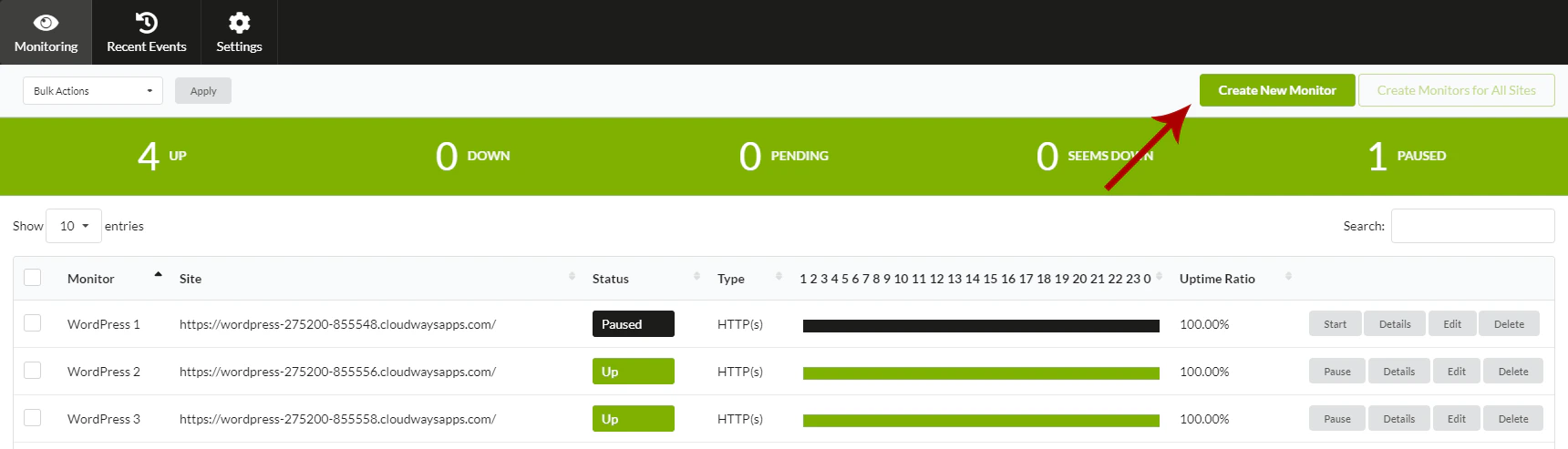
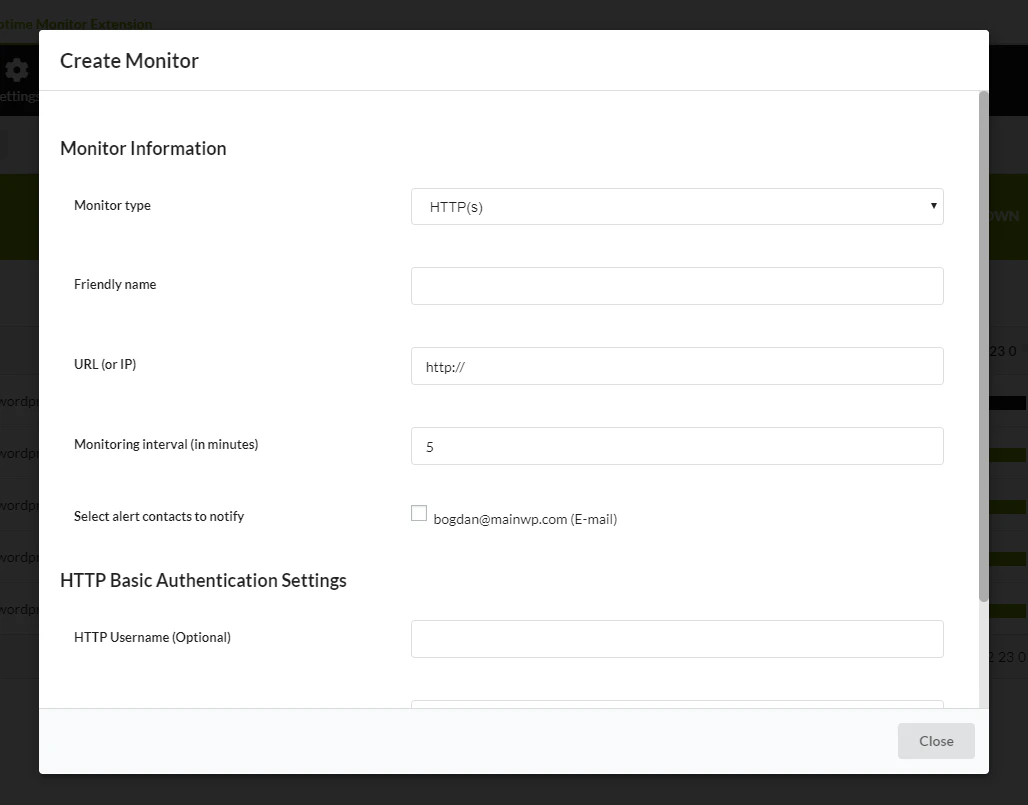
Create New Monitor
Monitor Types
- http(s): Perfect for website monitoring. The service regularly sends requests (which are the same as if a visitor is browsing your website) to the URL and decides if it is up or down depending on the HTTP statuses returned from the website (200-success, 404-not found, etc.)
- ping: Good for monitoring a server. Ping (ICMP) requests are sent, and up/down status is decided according to whether responses are received. Ping is not a good fit for monitoring websites as a website (its IP) can respond to ping requests while it is down (which means that the site is down but the server hosting the site is up)
- keyword: Checks if a keyword exists or does not exist on a web page
- port: Good for monitoring services like SMTP, DNS, POP as all these services run from a specific port, and Uptime Robot decides their statuses based on whether they respond to the requests
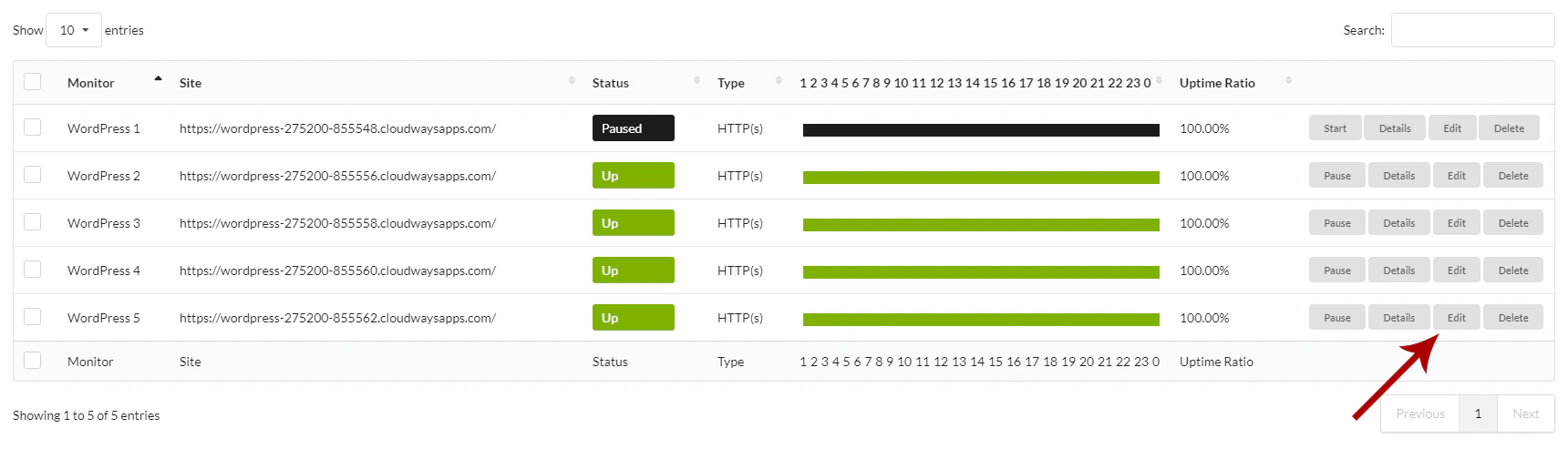
Edit Monitor
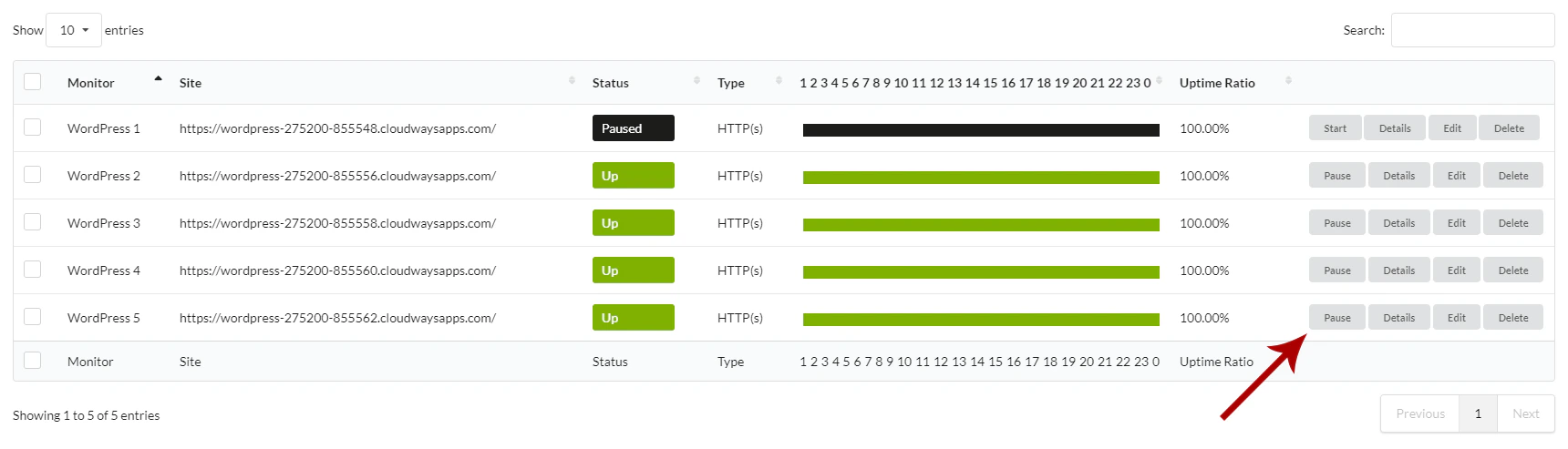
Start-Pause Monitor
Monitor Statistics
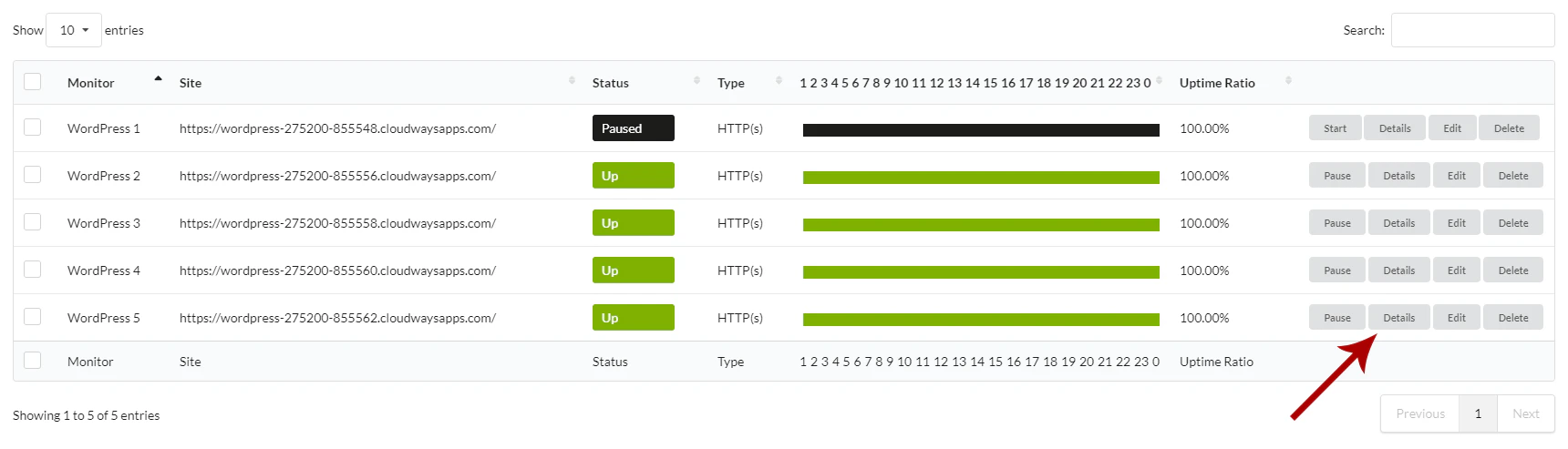
Delete Monitor
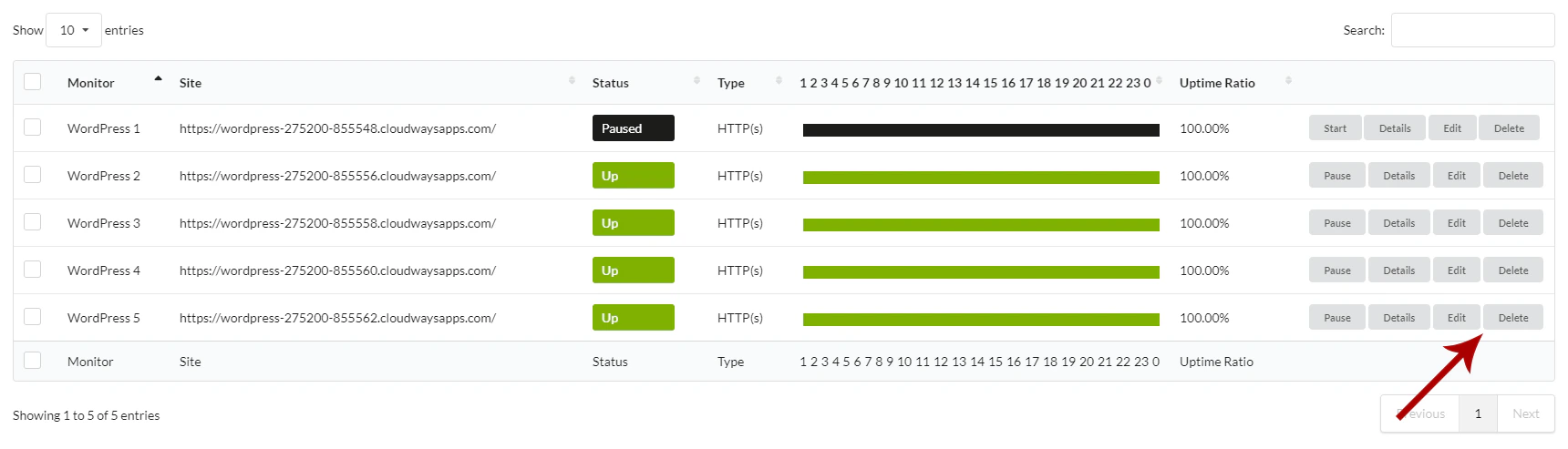
Create Monitors for All Child Sites
To automatically create monitors for all child sites that don’t have corresponding monitors:Connect Your Uptime Robot Account
To get your Uptime Robot API Key to use the MainWP Advanced Uptime Monitor extension, visit the Uptime Robot Webpage.Click the Sign-Up button (If you already have an account, proceed to step 4)
Click the Sign-Up button (If you already have an account, proceed to step 4)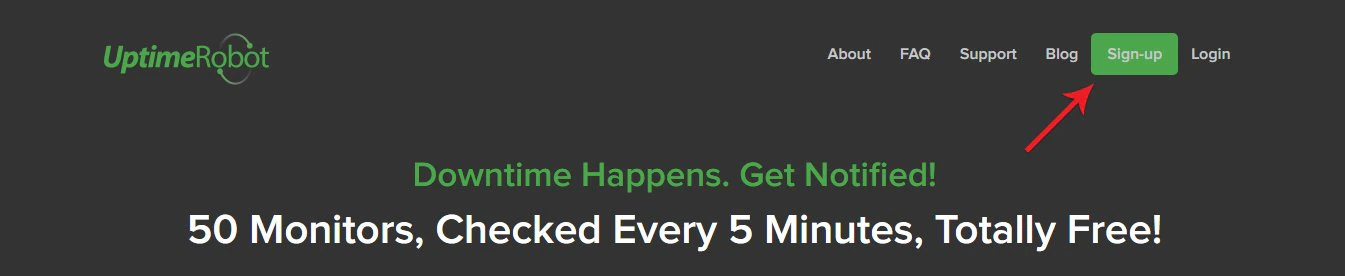
Fill up the registration form and check your email to activate your account
Fill up the registration form and check your email to activate your account. Follow the link in the email. You will get the confirmation note.
After confirmation, you are successfully registered
After confirmation, you are successfully registered. Next, you need to log in and generate an API Key.
When you type in your email address and password and click the Login button, you will be prompted to the Account Dashboard page
When you type in your email address and password and click the Login button, you will be prompted to the Account Dashboard page

Scroll down to the API Information area and click the Create the main API key link
Scroll down to the API Information area and click the Create the main API key link
Then it will show you the Create the main API key button, click that button
Then it will show you the Create the main API key button, click that button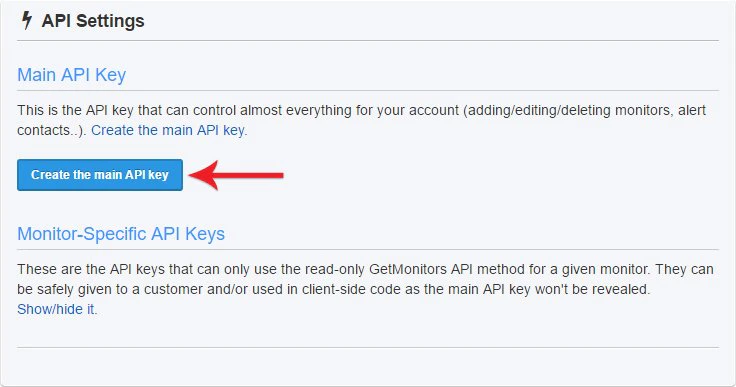
After you connect your account, you will be able to set the default Notification email address.
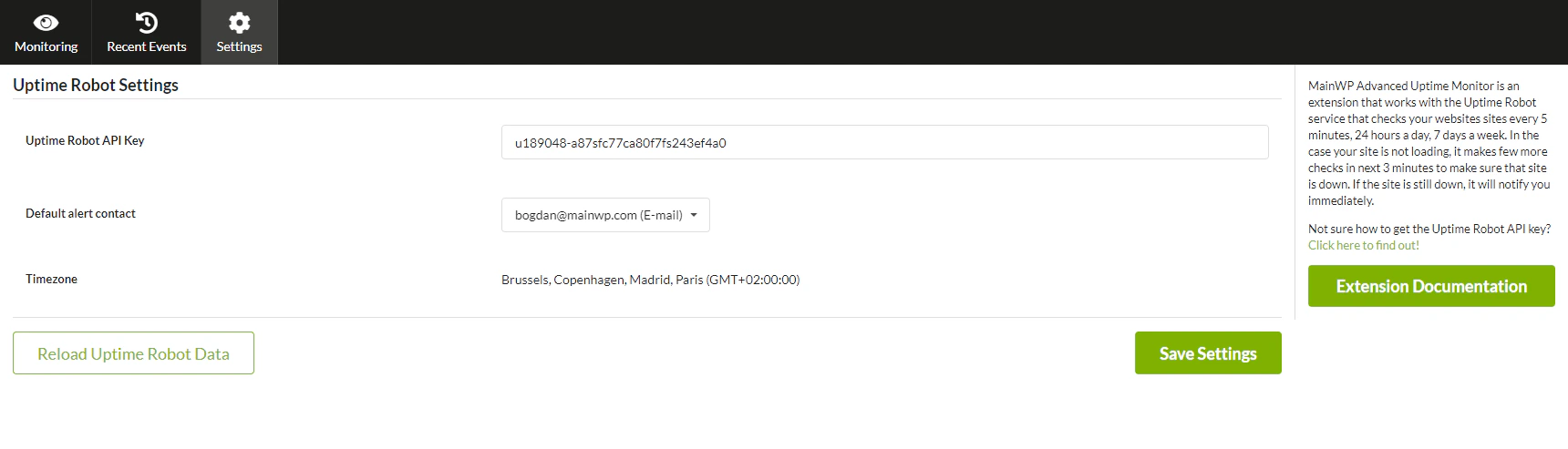
API limitations of the free Uptime Robot plan
Uptime Robot has recently reduced the limit to only 10 requests per minute. Requests include creating new monitors through the MainWP extension and fetching information about existing monitors. Reaching the limit is fairly easy for a large number of sites. This limit is most often hit when creating monitors for all sites by clicking the “Create Monitors for All Sites” button in the UI. You will likely be able to create 2 or 3 monitors per attempt and receive an error (red exclamation mark) for other sites because the API limit will be reached.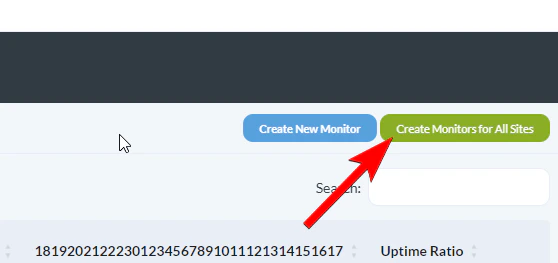
How to get a Better Uptime API token
To get the Better Uptime API token: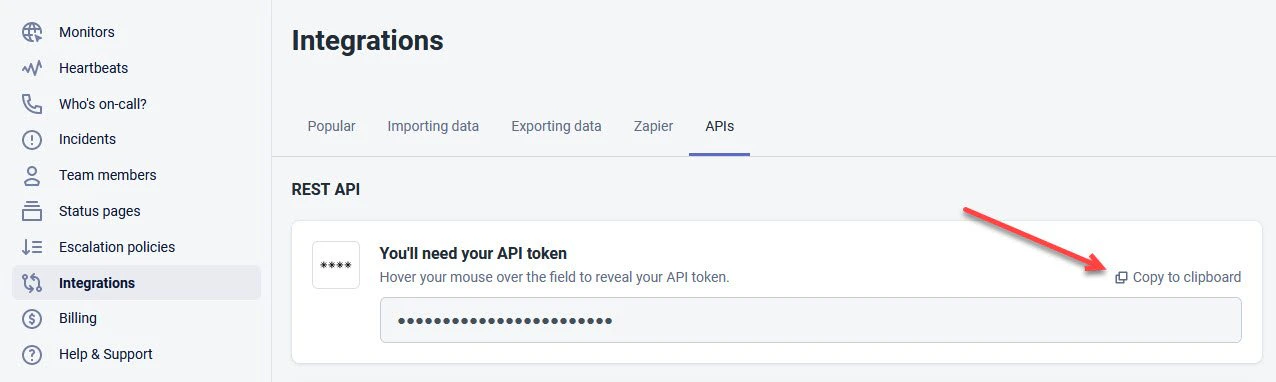
Team Control Permissions
If you use the Team Control extension, the Advanced Uptime Monitor respects each role’s Allowed Child Sites configuration. Users signed in with a restricted role only see monitors that belong to the child sites they are permitted to access; monitors for sites outside their scope are hidden from the Monitoring tab and from related views. Notes on how this works:- Each monitor is automatically associated with the matching child site based on its URL. Monitors created before this association existed are migrated automatically the first time they are viewed or updated.
- Monitors that cannot be matched to a child site (for example, IP-based or standalone endpoints) remain visible to all users so that they are not accidentally hidden.
- Scheduled uptime checks, WP-CLI commands, and the MainWP REST API are unaffected and continue to process every monitor regardless of the current user’s role.
Related Resources
- Monitoring Add-ons - Browse all monitoring tools
- Domain Monitor - Track domain expiration
- SSL Monitor - Monitor SSL certificates
- Team Control - Manage role-based access to monitors